
This interface (Production Data Collection) will let you collect and manage information about production processes.
Usage
1. First, you need to find a routing sequence to work on. You can:
-
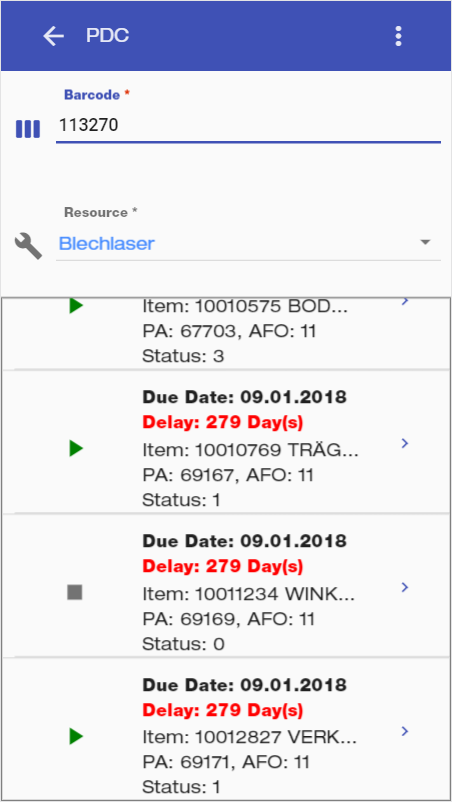
Directly scan the item and routing sequence to work on, in the Barcode field.
OR
-
Search for the Resource you are using, and find the item you will be producing.
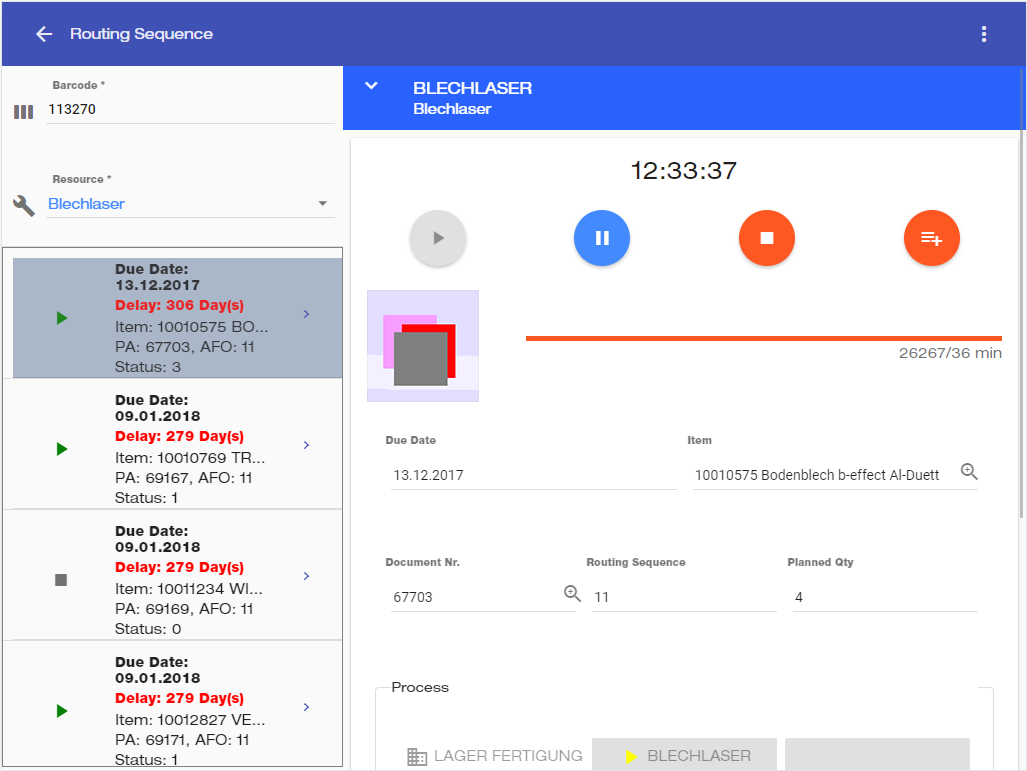
2. Then, an interface with the routing sequence is displayed.
On top of it, you can find information and buttons related to the production.
3. 
4. 

5. Press 
Production Information
-
Below the buttons in the interface, you can find information related to the Routing Sequence.
-
In the Process Field, you can find the resource being used, and you can select the next or the previous one.
-
The Bill of Materials field contains all the necessary items or parts for the production of the item.
Each item (row) contains:Information about the respective itemThe amount that is required.The amount that has been produced. -
The Attachments contains files with information or dangers about the manufacture.
Details
-
When selecting a Routing Sequence, each row displays their status as


-
A flag shows indicating stock availability.


-
Make sure you have all the required materials so you don't run into negative stock when finishing a routing sequence.
-
An updatable image of the item or production is displayed.
-
A progress bar and field indicating the amount of time elapsed is also displayed.
-
In the list of items from a Resource, if the current date is ahead the due date, a delay field is displayed in red.
-
Check attachments as they can contain important information or dangers about the manufacture.
-
In the main field, you can select the Item field to see details about the item being produced.
-
'Resource' can be understood as the current machine or field of work the user is producing something.
-
A manufactured item can contain several Routing Sequences and several items that will be used.
-
Understand this process as a kitchen recipe - where you have Resources (oven or stove), needed materials (ingredients) and the Item (final cake).
-
It's possible to disable the issue resource time. To enable feature set parameter "PDC.IssueResourceTime" to '0' in QYC_PARAM.
-
Follow-up action at feedback type: time. When closing a "Start/Stop" RS, previous "no message" RS are also closed.